How can we help you?
Guides, tutorials, and answers for every VegaTel feature — across desktop, mobile, and browser.
See VegaTel in action
Watch how easy it is to get started with VegaTel Cloud PBX
Browse by Feature
Jump to the section you need
Getting Started
VegaTel is a cloud PBX platform — no on-premise hardware required. Your team can be making and receiving calls from any device within minutes of signing up.
- 1Sign up for a free trial — no credit card needed
- 2Download the desktop, mobile, or browser extension
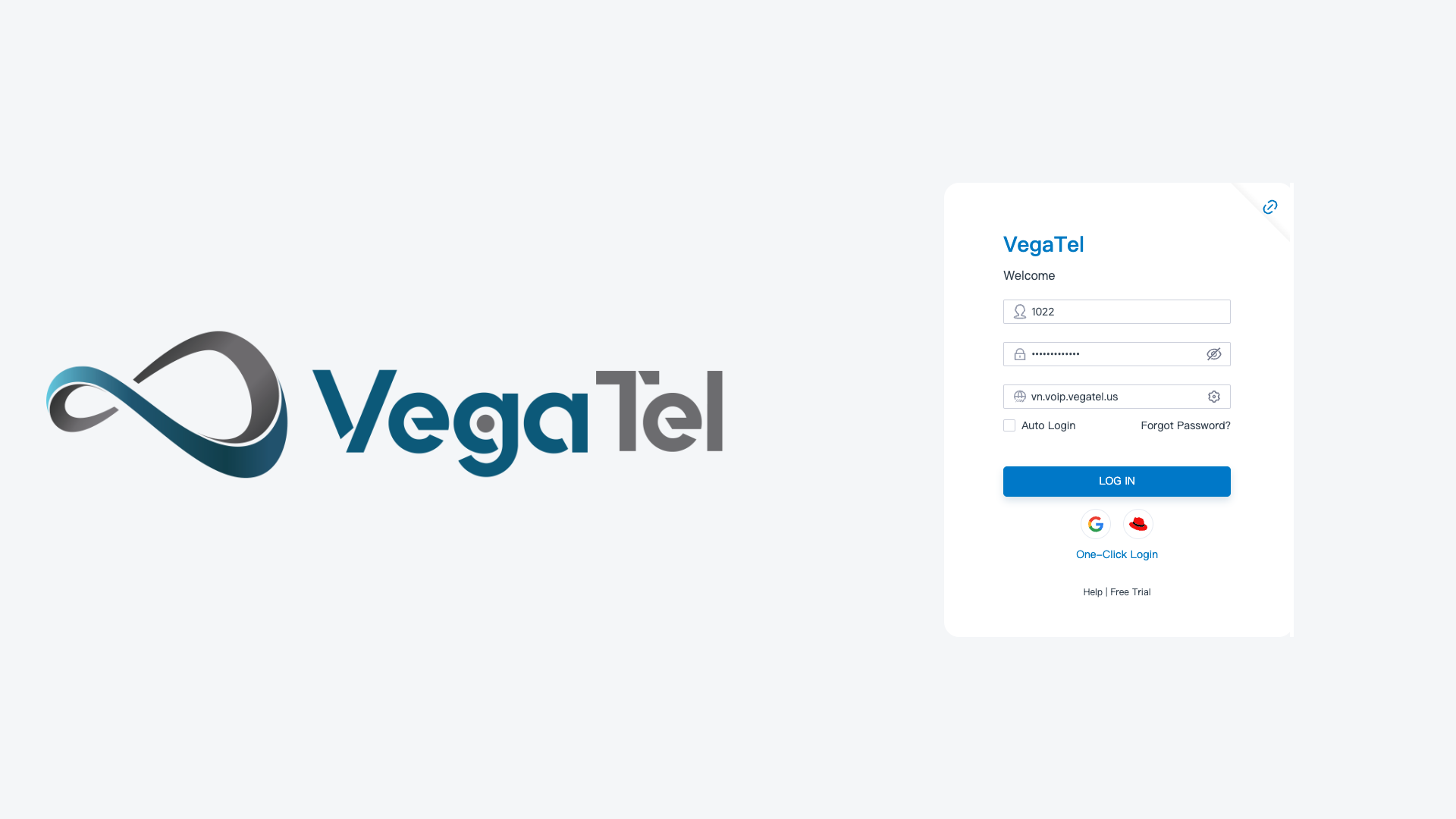
- 3Sign in with your VegaTel credentials
- 4Configure your audio devices in Settings › Audio
- 5You're ready to make your first call
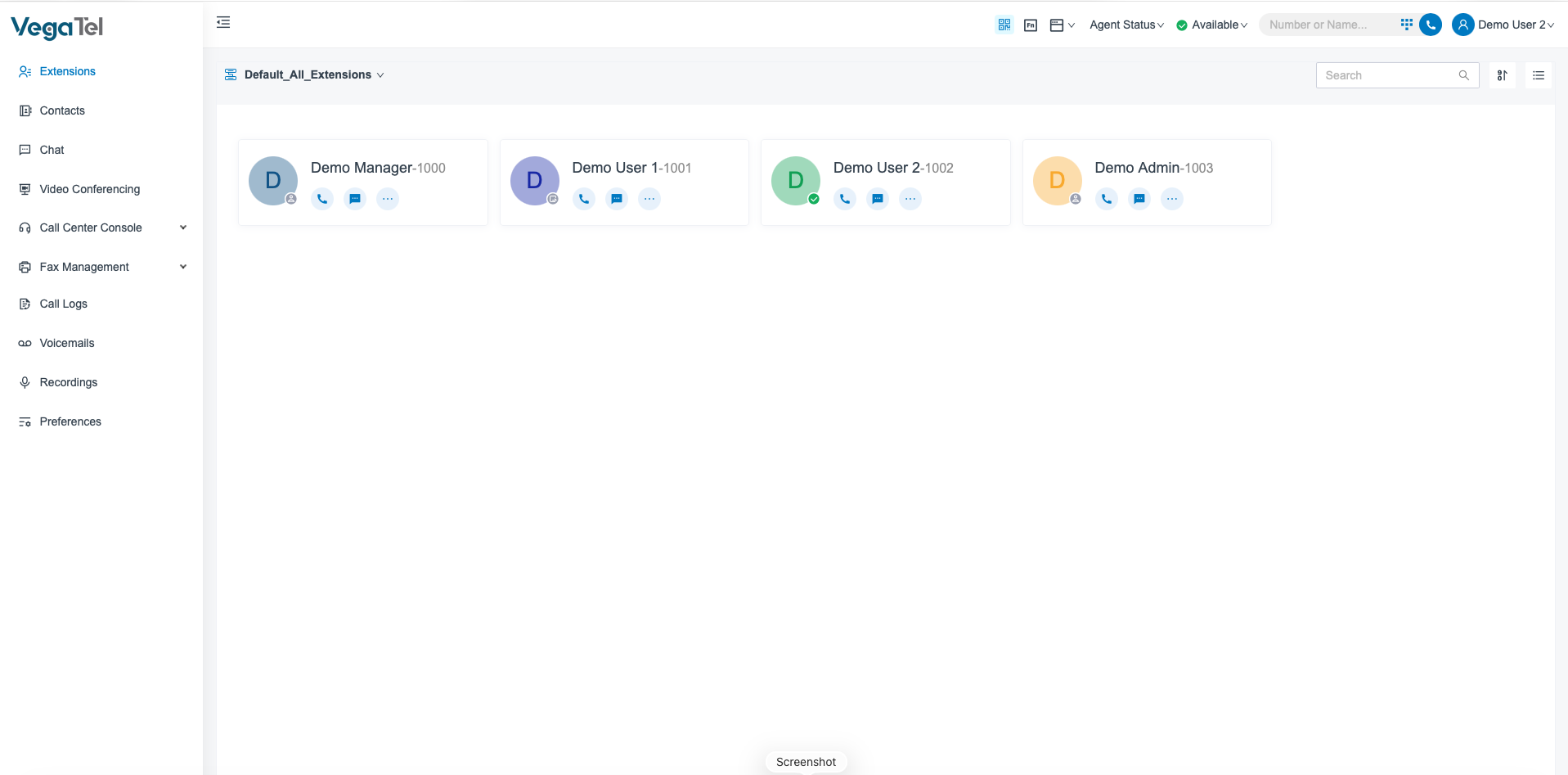
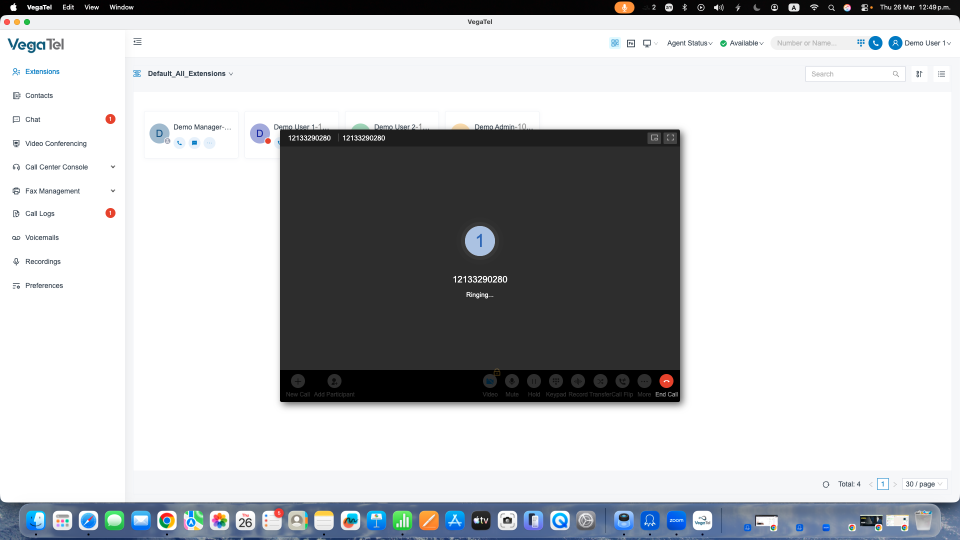
Voice & Video Calls
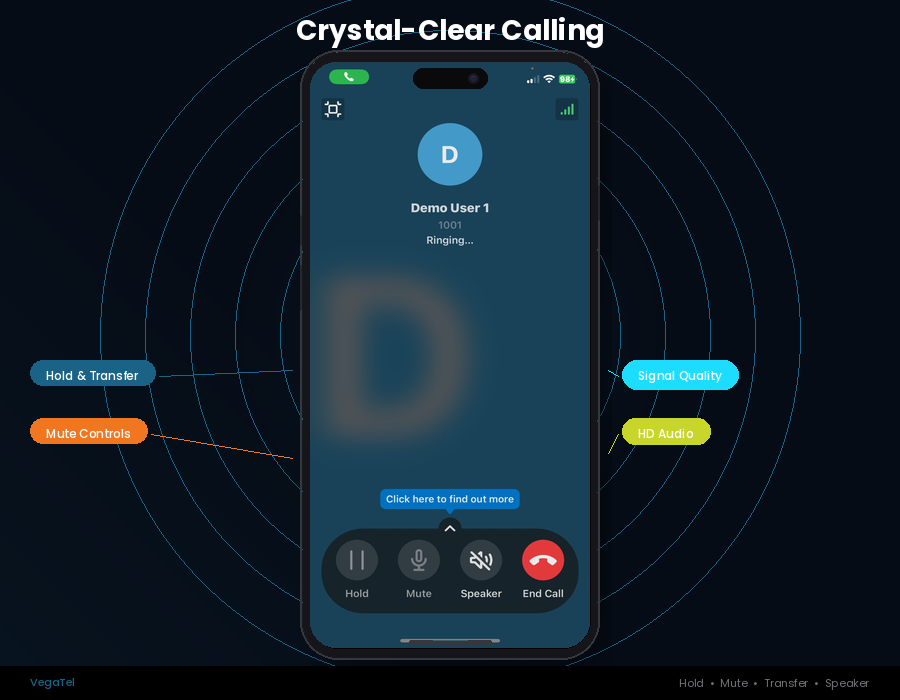
Make HD voice and video calls to any phone number or VegaTel contact directly from your desktop, mobile, or browser. All calls are encrypted end-to-end.
- 1Click 'New Call' or use the dialpad
- 2Enter the phone number or search a contact
- 3Choose Voice or Video call
- 4Use the in-call controls: Mute, Hold, Transfer, Record
- 5End the call with the red button
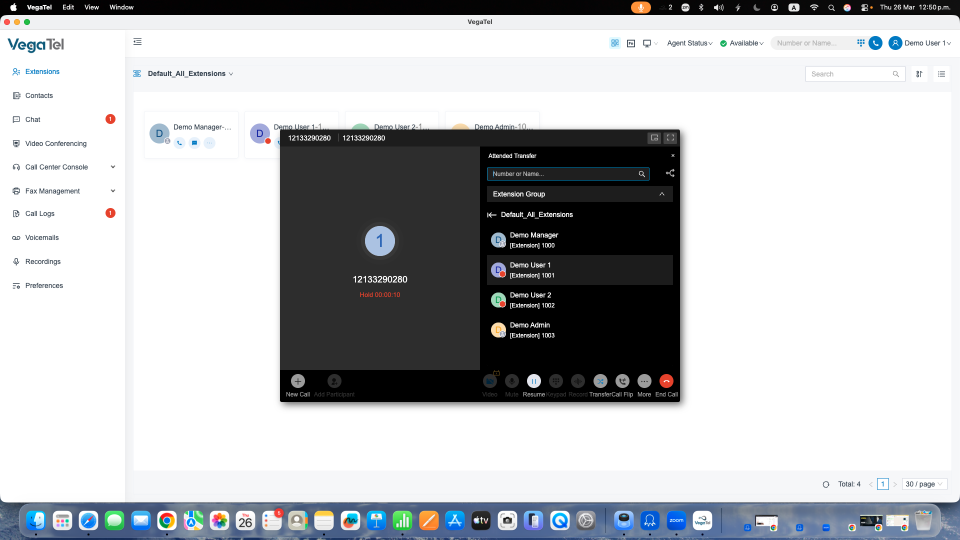
Call Transfer
Transfer calls effortlessly — whether you want to hand off silently, announce the caller first, or stay on briefly to ensure the transfer lands cleanly.
- 1During a call, click the Transfer button
- 2Choose Blind Transfer (silent) or Attended Transfer (announced)
- 3Enter the destination number or contact name
- 4For Attended: speak to the recipient first, then complete
- 5For Blind: the call transfers immediately
Conference Calls
Host multi-party calls with colleagues, clients, or partners. Add participants on the fly, mute individuals, and manage your conference room in real time.
- 1Start a call with the first participant
- 2Click 'Add Participant' or 'Conference'
- 3Dial or search for the next person
- 4Repeat to add more participants
- 5Use the conference panel to mute or remove individuals
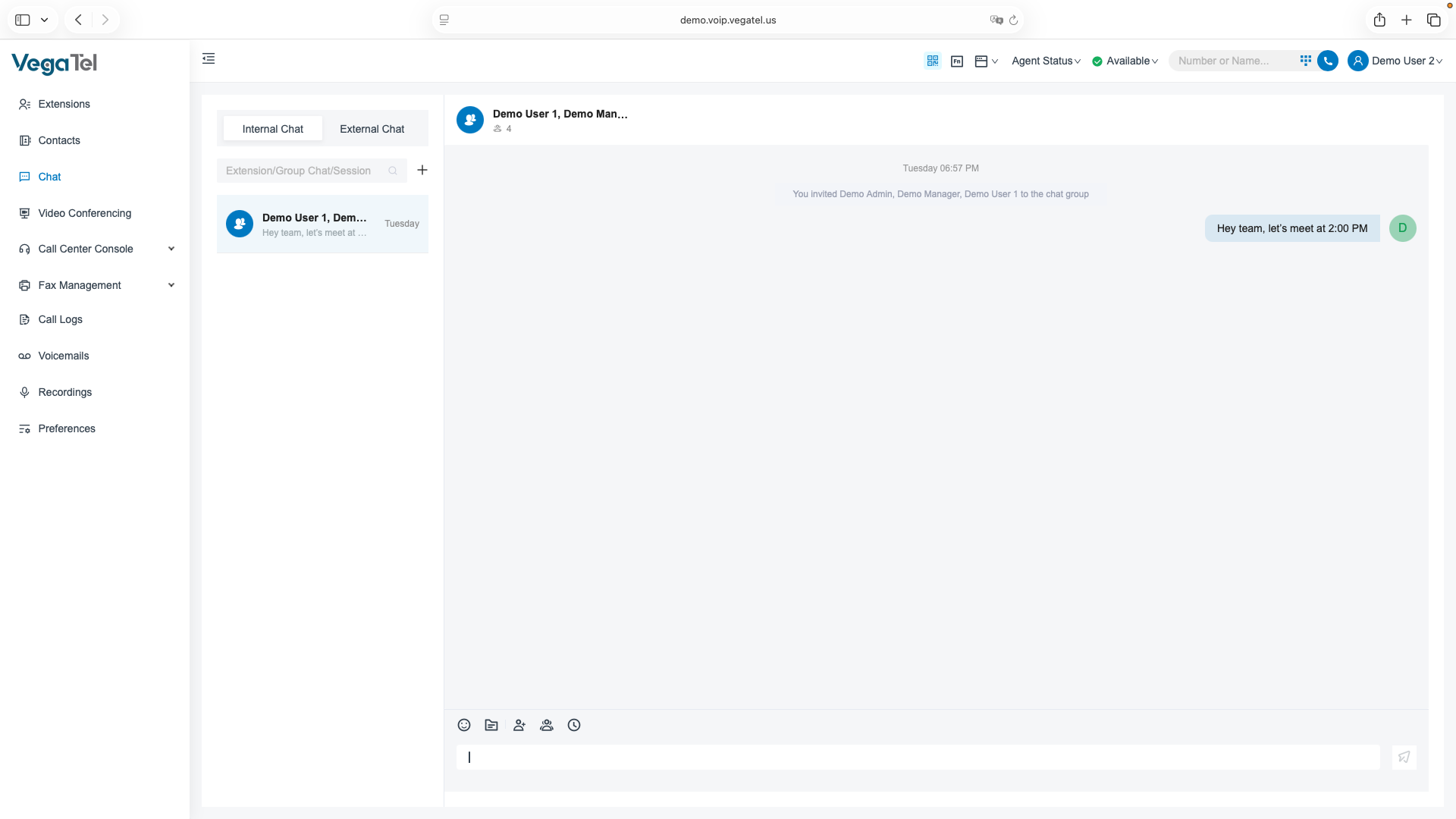
Chat & SMS
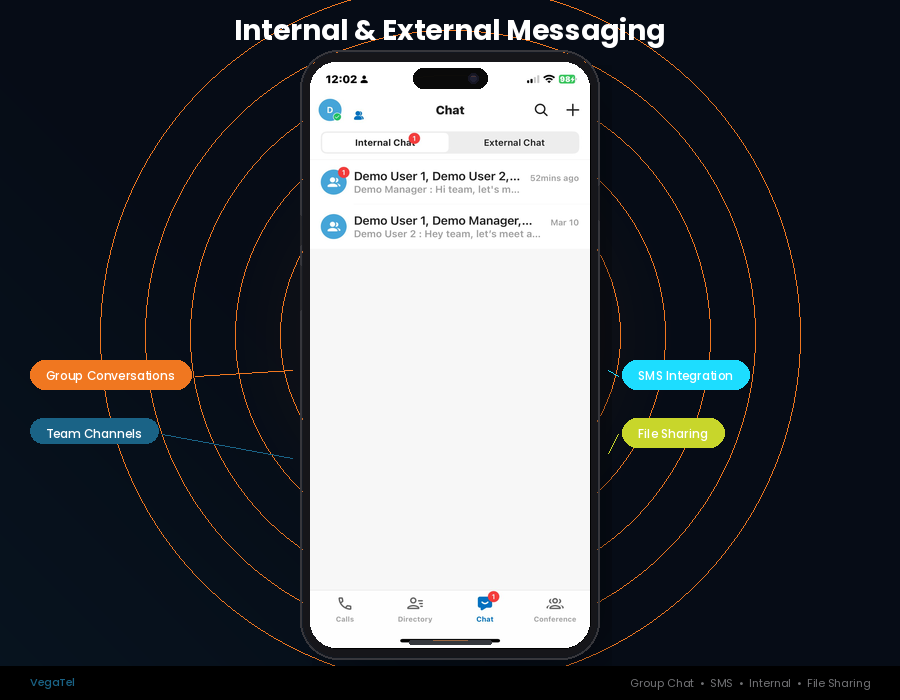
Send and receive SMS messages and internal chats from the same VegaTel interface you use for calls. Keep all business communications in one place.
- 1Open the Messages tab
- 2Click 'New Message'
- 3Select a contact or enter an external phone number
- 4Type your message and press Send
- 5Internal chats deliver instantly; SMS routes via your DID number
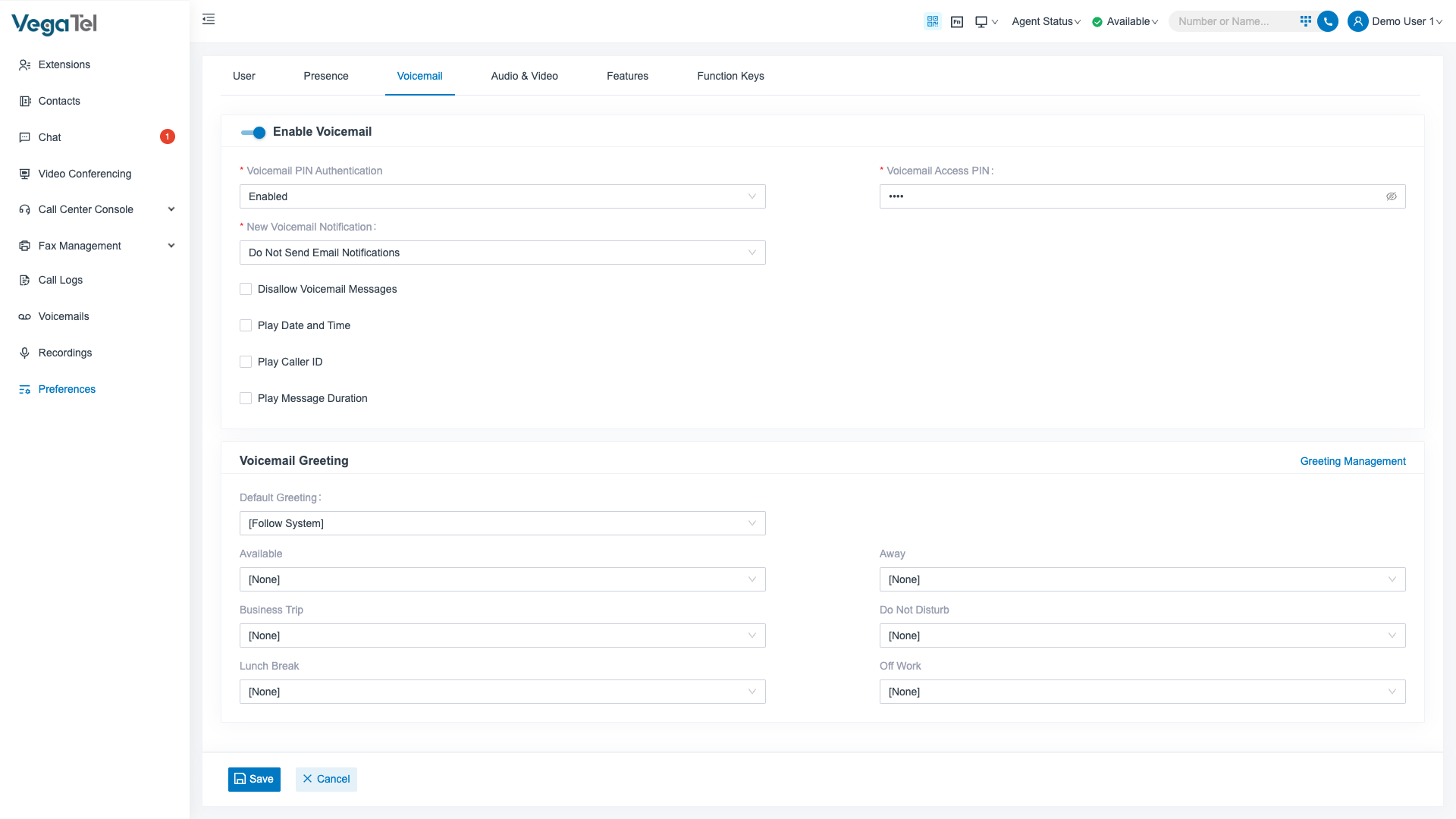
Voicemail
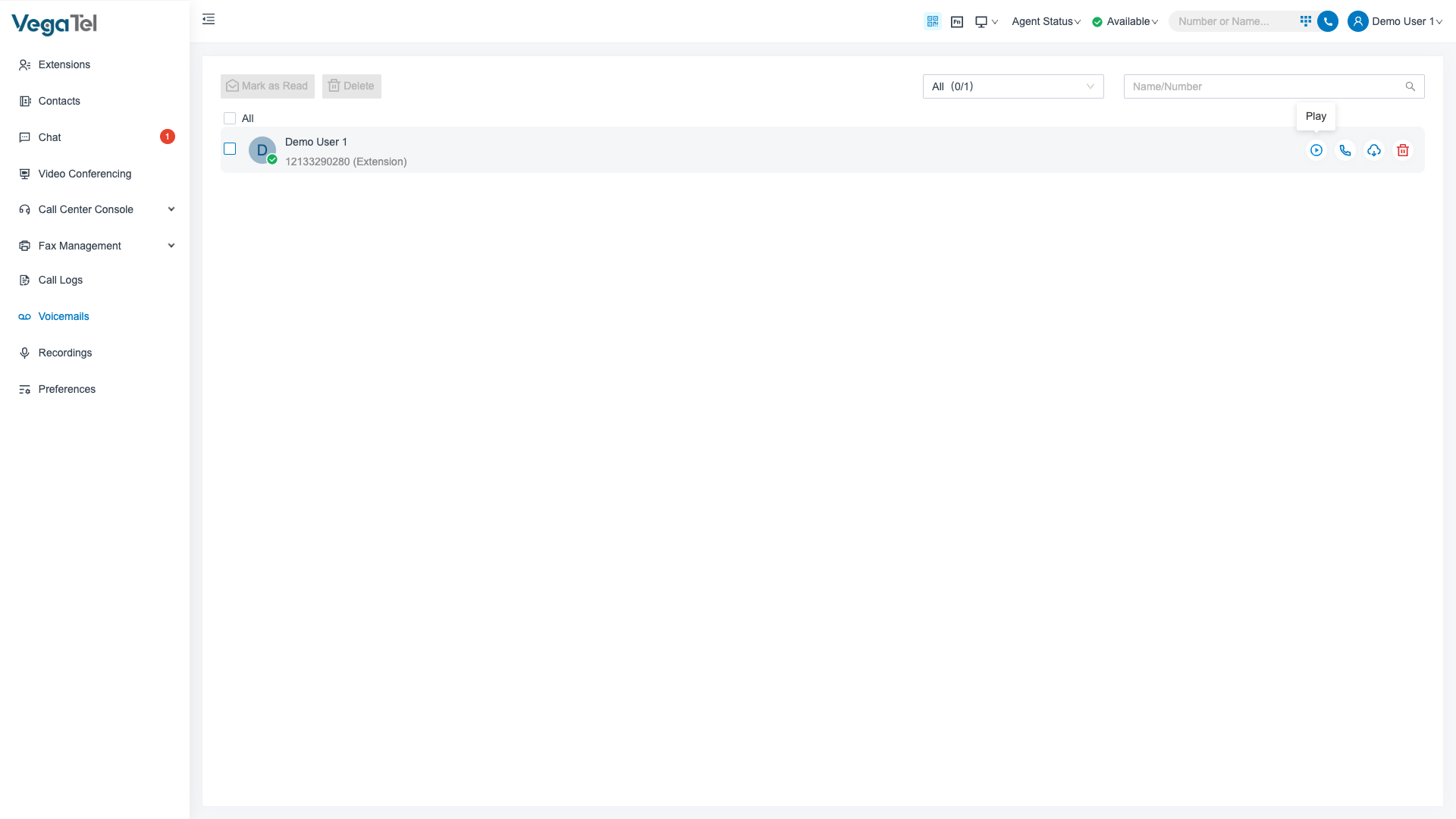
Visual voicemail lets you browse, play, and manage messages without dialing in. AI transcription turns voicemails into readable text so you can respond faster.
- 1Open the Voicemail tab
- 2Click any message to play it
- 3Read the AI-generated transcript
- 4Reply by calling back directly from the message
- 5Delete or archive messages to keep your inbox clean
Call Center
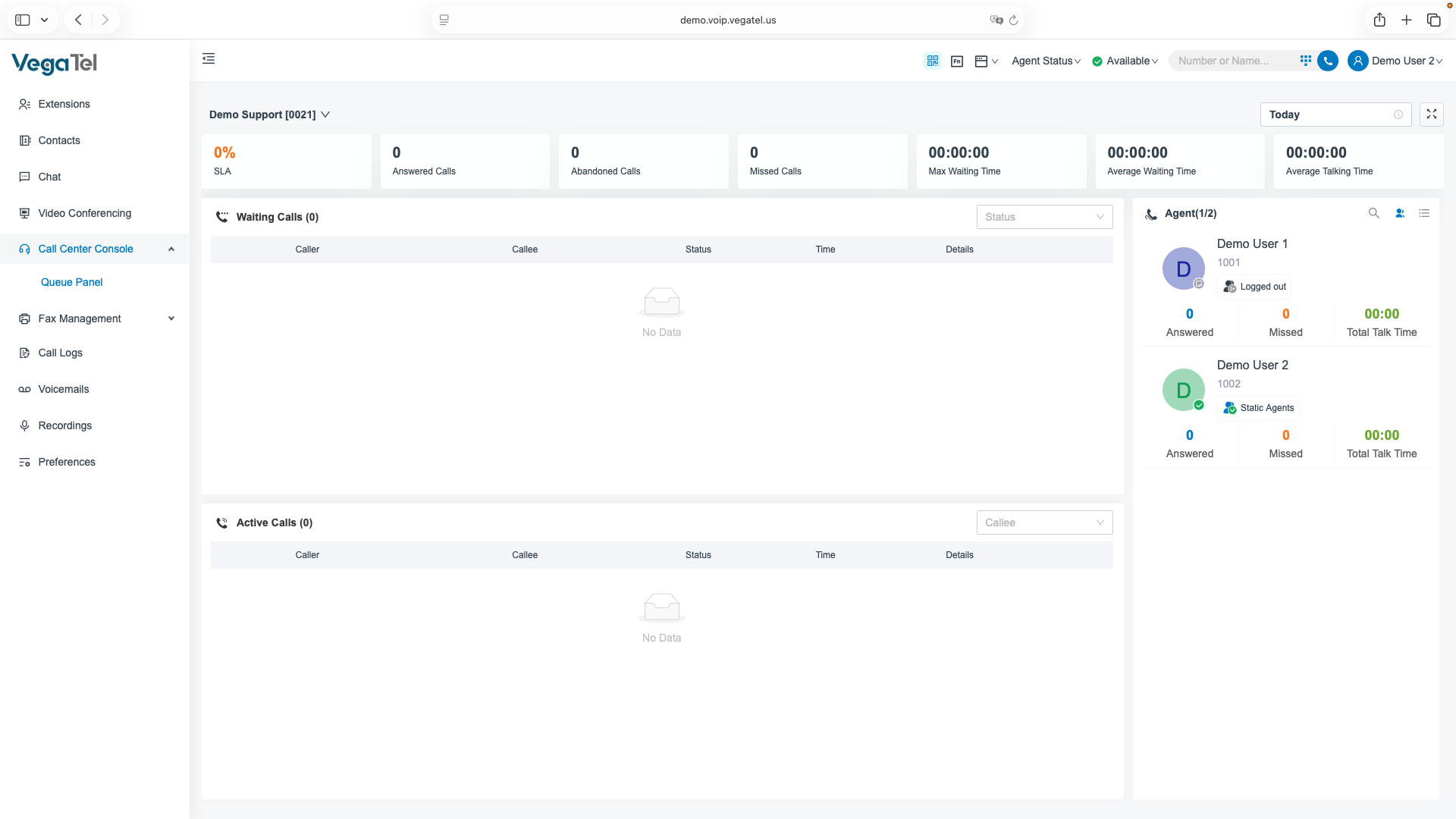
VegaTel includes a full inbound call center module — create queues, define skill-based routing rules, monitor agents in real time, and access live dashboards.
- 1Go to Admin › Call Center
- 2Create a queue and add agents
- 3Define routing strategy (round-robin, least-occupied, skill-based)
- 4Set hold music, announcements, and max wait time
- 5Monitor live calls and agent status from the Supervisor panel
Virtual Fax
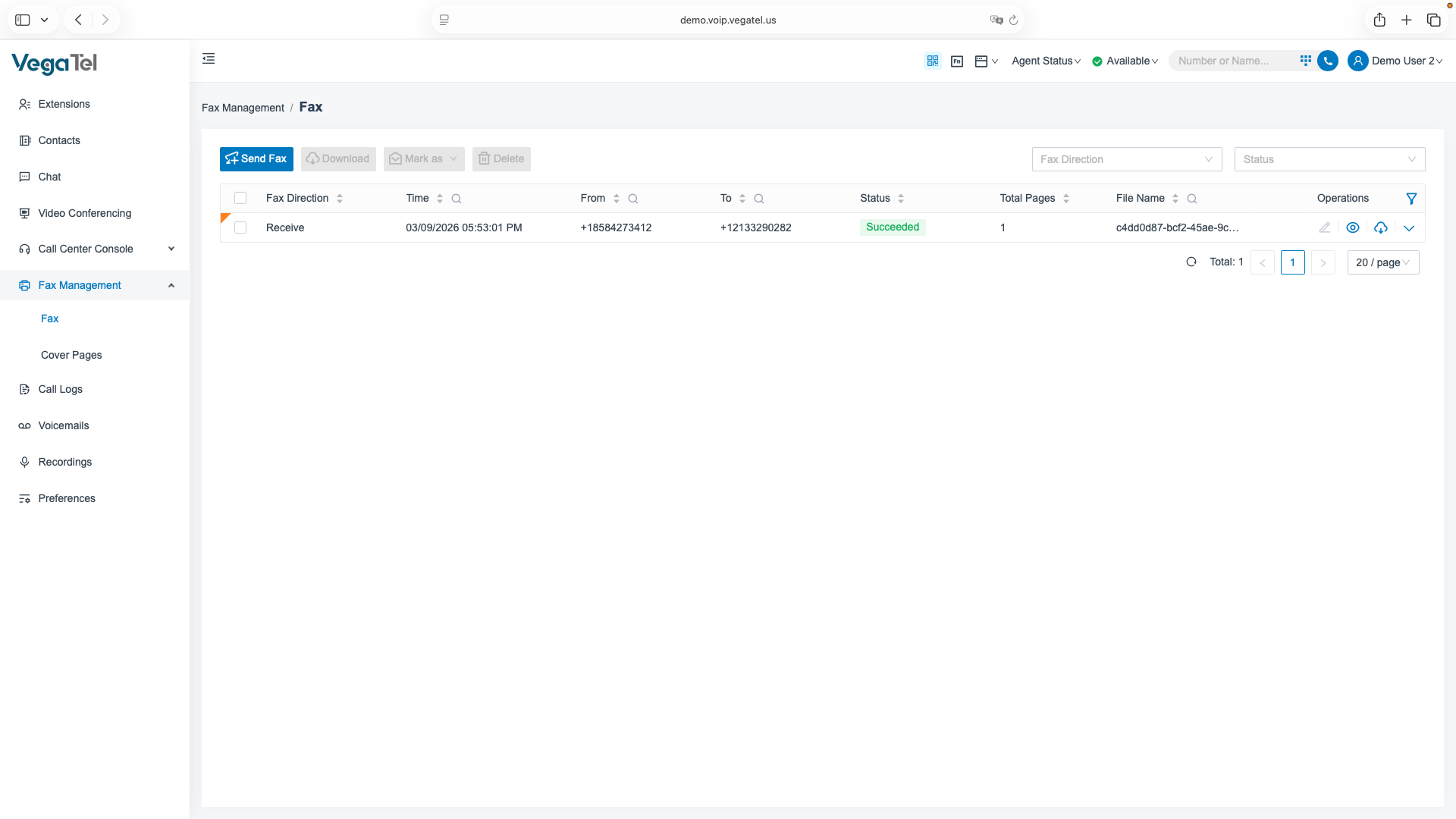
Send and receive faxes digitally through your VegaTel number. Incoming faxes arrive as PDF attachments in your email; outgoing faxes are sent directly from the portal.
- 1Go to Admin › Fax
- 2Assign a DID number for fax reception
- 3Incoming faxes are forwarded to your email as PDFs
- 4To send, upload a PDF and enter the destination fax number
- 5Track sent and received faxes in the Fax Log
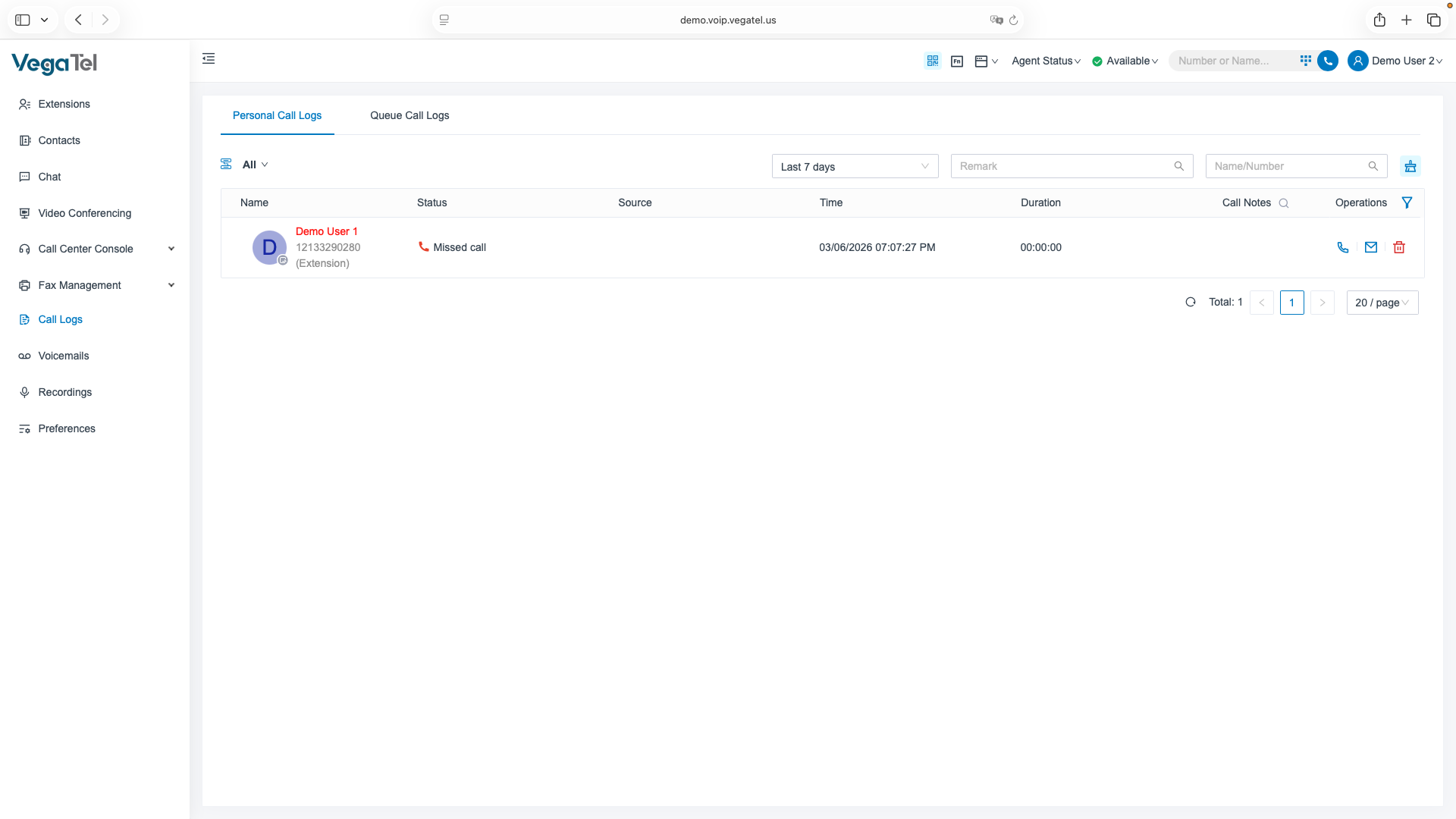
Call Logs & Analytics
Access detailed call records for every inbound and outbound call. Filter by date, user, or number. Export data for billing, compliance, or reporting purposes.
- 1Open the Call History tab
- 2Filter by date range, direction, or user
- 3Click any record to view full call details
- 4Play call recordings directly from the log
- 5Export filtered results as CSV for external analysis
AI Assistant
VegaTel's AI layer transcribes calls in real time, generates post-call summaries, extracts action items, and flags sentiment — so your team spends less time on admin.
- 1Enable AI features in Admin › AI Settings
- 2Start or receive a call as normal
- 3Real-time transcript appears in the call sidebar
- 4Post-call: review the AI summary and action items
- 5Search across transcripts in the AI Insights dashboard
Mobile App
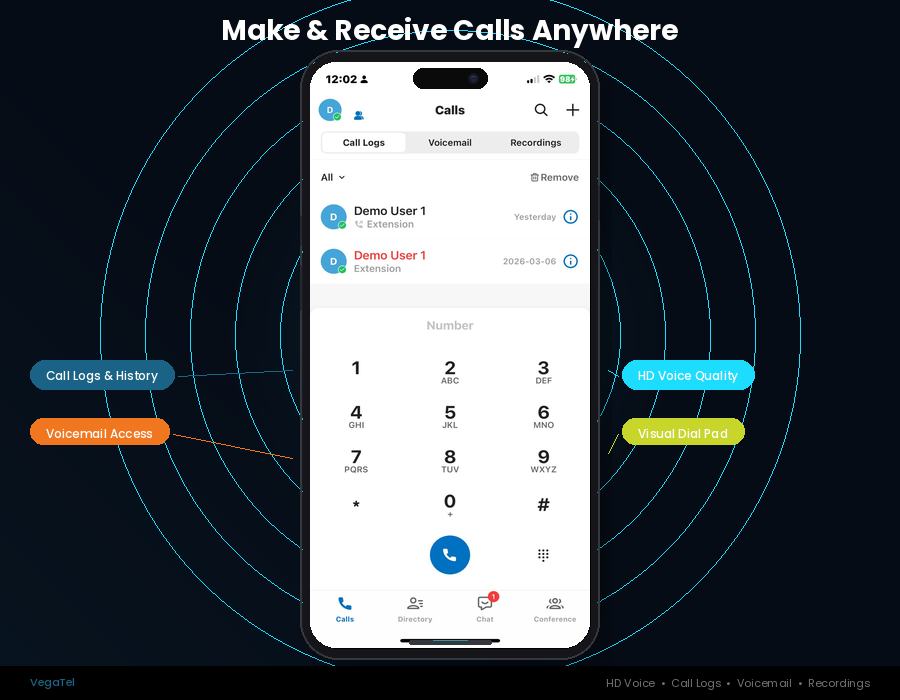
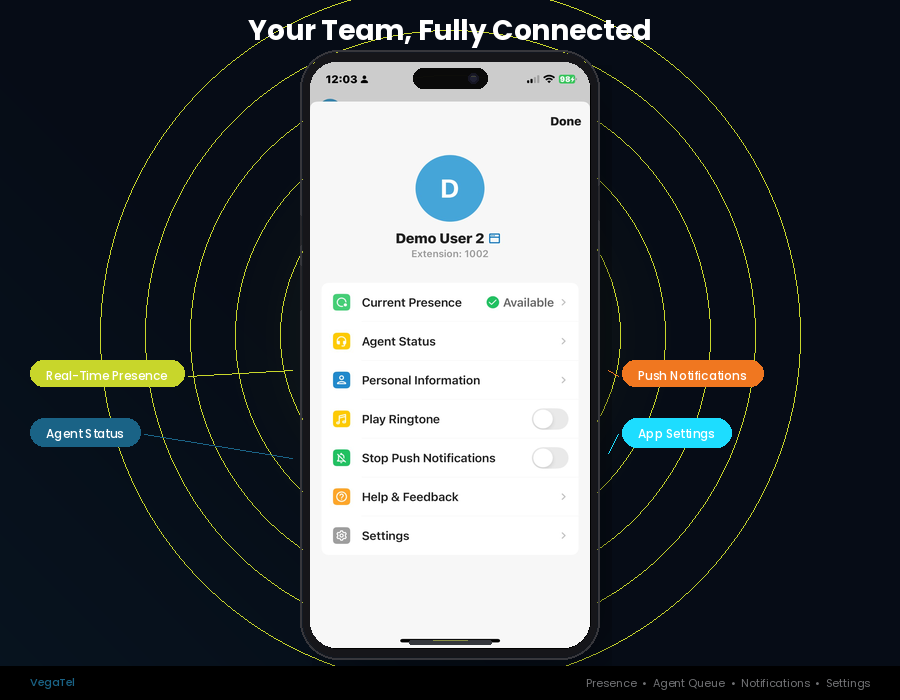
The VegaTel mobile app gives you the same calling, messaging, and voicemail features as the desktop client — fully optimized for iOS and Android.
- 1Download from the App Store (iOS) or Google Play (Android)
- 2Sign in with your VegaTel credentials
- 3Grant microphone and notification permissions
- 4You'll receive incoming calls even when the app is in the background
- 5Use the same dialpad, contacts, and history as the desktop app
Frequently Asked Questions
Quick answers to common questions
Still need help?
Our support team responds to every inquiry within 24 hours. Describe your issue and we'll get you sorted.